 Documentation


XML Export Format
Export data to XML document. The export process is performed by Database Tour export engine with direct file access and therefore is very fast.
Note: In case of XSL schema, in addition to the main .xml file, a separate file with the same name and .xsl extension will be created and already existing .xsl file (if any) will be overwritten.
The data can be exported to XML format either from Database Tour (Pro) GUI or from the Database Tour Pro command line.
When exporting data from GUI, switch to XML page of the Export dialog. If this page is not visible, click Favorite Export Formats button in the top-right corner of the window and make sure the corresponding format is selected.
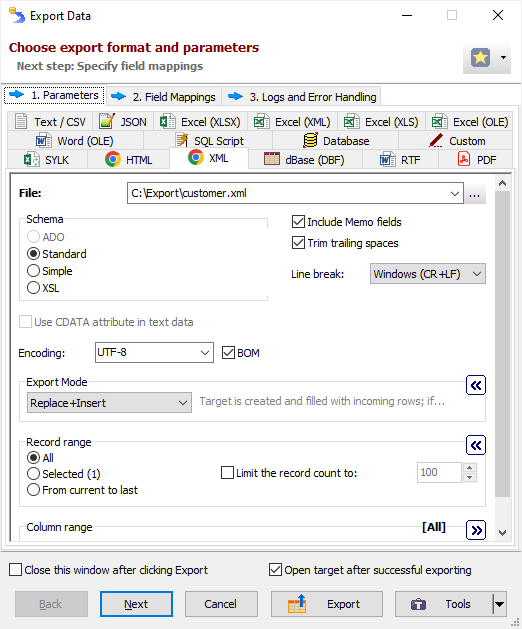
Format Specific Options
File - a file name to export data to, when exporting data from one table or SQL query. The option is not available when exporting data to clipboard.
Folder - a folder name to export data to, when exporting data from a group of tables (multi-table export). Each table will be exported to a separate file in the specified folder; file names can be specified in Table Mappings. The option is not available when exporting data to clipboard.
Schema - XML schema:
|
ADO Data are exported using ADO compatible XML schema. Such output .xml files may be then opened as regular tables using ADO interface. |
|
Standard Data are exported using standard XML schema with metadata tag, which contains description of the fields. |
|
Simple Data are exported using simple Database Tour XML schema. |
|
XSL Data are exported using XSL schema, which is saved to the separate file with .XSL extension. |
Command line equivalent: /XmlSchema.
Use CDATA attribute in text data - use CDATA attribute in text data or not (only in Simple schema). This attribute is used to prevent the data parsing. Command line equivalent: /XmlUseCDataAttr.
Encoding - XML encoding. Command line equivalent: /Encoding.
BOM - include BOM (byte order mark) when using Unicode encoding. Reverse command line equivalent: /NoBom.
Append timestamp to file - append current timestamp to the end of the target file name. The timestamp mask is _YYYYMMDD_HH24MISS. Command line equivalent: /AppendTimestamp.
Include MEMO fields - include contents of MEMO / CLOB fields in target; in the latter case, a constant describing the field type will be used instead of the field contents. Command line equivalent: /IncludeMemo.
Trim trailing spaces - trim trailing spaces and control characters in target. Applicable for char and varchar data only. Using this option allows to remove useless data and thus reduce the output volume, and sometimes improve the target look. Command line equivalent: /TrimTrailingSpaces.
Line break - line break style; if you choose Windows, then each line in the file will be terminated by carriage return and new line character (CR+LF); if you choose Mac, a carriage return (CR) will be used to separate lines; otherwise, Unix style will be used (LF). Command line equivalent: /LineTerminator.
Export mode
|
REPLACE+INSERT Target file is created and filled with incoming rows; if target already exists, it is overwritten. |
|
CREATE_OR_REPLACE Blank target file (using appropriate structure) is created; if the target file already exists, it is overwritten. |
|
APPEND Target file is appended with incoming rows; if the target file does not exist, it is created. Applicable only if schema is Standard or Simple. Notes |
Note: For multi-table exporting, the value can be overridden for each individual table-to-file pair in Table mappings section.
Command line equivalent: /ExportMode.
Record range
Range of source records to be exported:
- Full table - all records are exported.
- Selected records only - only selected records are exported. To select rows, click the corresponding button and then select needed rows using Shift, Ctrl and arrow keys.
- From current record to the last one - all data between current and the last records are exported.
Limit the record count to - maximum number of records to be exported. If this option is not specified or it is less then 1, all records from the specified record range will be exported. If you just want to create a file without data exporting, use the corresponding Export mode instead. Command line equivalent: /LimitRecordCount.
Column range
Range of source columns to be exported:
- All columns - all columns (including columns, which were temporary hidden by user) are exported.
- Selected column only - only selected (current) column is exported.
- Visible columns - only visible columns are exported.
Other options
Ask before overwrite or empty existing target - ask the user to overwrite existing target for REPLACE+INSERT and CREATE_OR_REPLACE export modes. The option is not available when exporting data to clipboard.Reverse command line equivalent: /SuppressOverwriteOrDeletePrompt.
See also